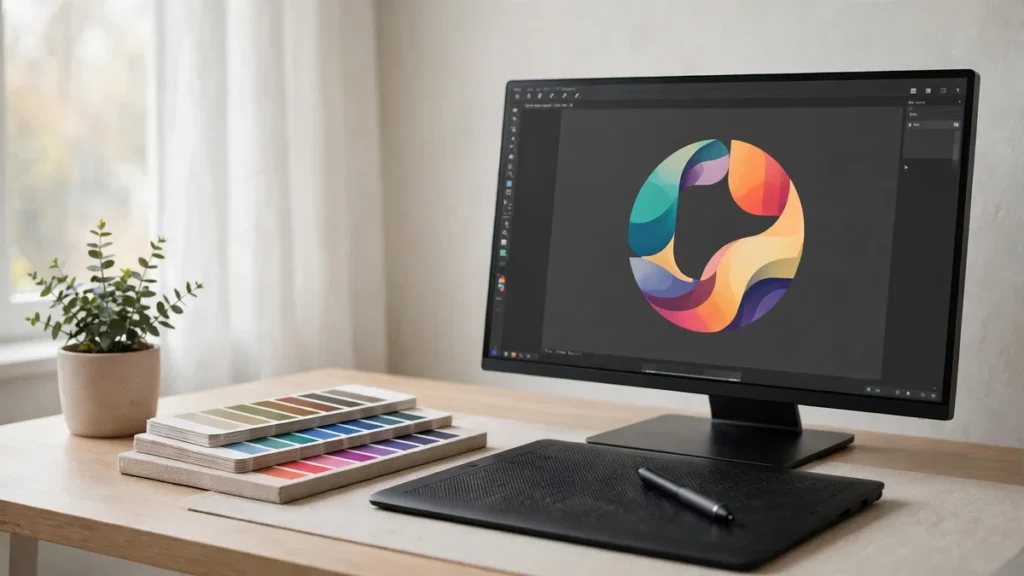
The best AI tools for designers in 2026 have moved far beyond novelty image generators. They now handle the repetitive, time-consuming parts of real design work: removing backgrounds in seconds, generating on-brand variations of a layout, suggesting colour palettes that actually work, turning a rough sketch into a polished mockup, and producing logo concepts a client can react to on the first call. For working designers, that shift matters because it changes where the hours go. Less time is spent on production chores, and more time is available for the thinking that clients actually pay for: concept, hierarchy, taste, and judgement.
That does not mean the tools replace designers. Every experienced designer who has used them seriously will tell you the same thing. AI is excellent at generating options quickly and terrible at deciding which option is right. It can produce fifty logo directions before lunch, but it cannot tell you which one fits the brand strategy, which one will still look good in five years, or which one the client will actually love. The designers getting the most value from AI in 2026 treat it as a fast junior assistant: brilliant at drafts, variations, and grunt work, but always supervised by a human with taste.
This guide compares the twelve best AI tools for designers in 2026 across the jobs designers actually do: image generation, logo design, layout and web design, colour and typography, and image cleanup. For each tool you will find what it does best, what it struggles with, who it suits, and what it costs, so you can pick the one or two that fit your workflow instead of paying for five subscriptions you barely open. Every tool here was chosen because working designers use it on real client work, not because it made a splashy demo.
Key takeaways
- Adobe Firefly is the safest choice for commercial client work because it is trained on licensed content and integrates directly with Photoshop and Illustrator.
- Midjourney still produces the most striking, art-directed images, while Ideogram is the best option when your design needs accurate text inside the image.
- Canva Magic Studio is the fastest all-rounder for social posts, presentations, and quick brand assets, especially for small teams without a dedicated designer.
- Logo and brand tools like Looka are excellent for fast concepts and inspiration, but a final logo still needs a human designer to refine it.
- Start with one image tool and one layout tool, learn them properly, and only add more subscriptions when a specific job demands it.

How we picked the best AI tools for designers
We judged every tool on five things that matter in daily design work. First, output quality: does it produce work you could show a client, or does it need heavy fixing first? Second, control: can you steer it toward a specific style, brand, or layout, or are you stuck re-rolling prompts and hoping? Third, workflow fit: does it plug into the apps designers already use, such as Photoshop, Figma, or Canva, or does it force you into a separate silo? Fourth, commercial safety: are the licensing and training-data terms clear enough to use the output on client work? And fifth, value: does the price make sense for what it saves you?
We deliberately left out tools that are impressive in a demo but unreliable in production. A tool that generates a beautiful image once in ten tries is not useful when a deadline is in two hours. We also left out general chatbots, even though many designers use them for brainstorming, because this guide is about tools built for design tasks. The twelve tools below cover the full design workflow, from the first idea to the final exported file, and most designers will only ever need two or three of them.
Best AI tools for designers at a glance
| Tool | Best for | Standout strength | Starting price |
|---|---|---|---|
| Adobe Firefly | Commercial-safe image generation | Licensed training data and Photoshop integration | Free tier; paid from about $10 per month |
| Canva Magic Studio | Fast all-round design | One-click Magic Design, resize, and background tools | Free tier; Pro from about $15 per month |
| Midjourney | Art-directed imagery | The most striking, distinctive image styles | From about $10 per month |
| DALL·E 3 | Easy prompt-based images | Natural-language prompts inside ChatGPT | Included with ChatGPT Plus at about $20 per month |
| Leonardo AI | Game and illustration assets | Fine-tuned models and consistent characters | Free tier; paid from about $12 per month |
| Ideogram | Images with text | The most accurate text rendering in images | Free tier; paid from about $8 per month |
| Figma AI | UI and product design | First drafts, renaming, and prototyping inside Figma | Included in paid Figma plans |
| Framer AI | AI website building | Turns a prompt into a working, publishable site | Free tier; paid from about $5 per month |
| Uizard | Wireframes and app mockups | Sketch-to-screen and screenshot-to-design | Free tier; Pro from about $12 per month |
| Looka | Logo concepts | Fast logo and brand-kit generation | Free to try; logo packages from about $20 |
| Khroma | Colour palettes | Palettes trained on your own preferences | Free |
| Remove.bg | Background removal | One-click cutouts in seconds | Free tier; paid from about $9 per month |
The 12 best AI tools for designers in 2026
1. Adobe Firefly
Adobe Firefly is the AI image generator built for professional designers who need to use their work commercially without worrying about where the training images came from. Firefly is trained on licensed Adobe Stock content and public-domain material, which makes it the easiest tool on this list to defend in front of a cautious client or a legal team. It also lives inside the apps designers already use: Generative Fill in Photoshop lets you extend a background, remove an object, or add an element with a text prompt, and Firefly features are appearing across Illustrator and Express too. The image quality is strong and improving fast, particularly for product shots, textures, and photographic scenes, though it is less surreal and stylised than Midjourney by design. Firefly also offers text-to-vector graphics, which is genuinely useful for logos and icons, and a structure-reference feature that lets you match the composition of an existing image. The free tier gives you a monthly allowance of generative credits, and paid plans start at around ten dollars a month. If you already pay for Creative Cloud, Firefly is the obvious first choice.
2. Canva Magic Studio
Canva Magic Studio is not one tool but a bundle of AI features inside the design platform millions of small businesses already use, and that is exactly why it is so popular. Magic Design turns a prompt or an uploaded image into a full set of on-brand templates. Magic Resize adapts one design to every social format in seconds. Magic Eraser and Background Remover clean up photos without opening Photoshop. Magic Write drafts the copy to go with the design. None of these features is the best in its class on its own, but together they make Canva the fastest way to produce a large volume of decent, consistent design work. Brand Kit keeps colours, fonts, and logos locked in, so a junior team member can produce social posts that still look like your brand. The free tier is generous, and Pro costs around fifteen dollars a month. For solo designers, Canva is a speed tool for client deliverables that do not need a fully custom touch. For everyone else, it is the tool that handles the everyday design jobs so the specialist tools can handle the important ones.
3. Midjourney
Midjourney remains the tool designers reach for when the image itself is the star of the show. Its output has a distinctive, art-directed quality that other generators struggle to match: richer lighting, more interesting composition, and a sense of style that reads as intentional rather than random. It is the best choice for editorial illustration, album art, posters, mood imagery, and any project where the visual needs to feel crafted rather than stock. The trade-off is control. Midjourney runs through Discord or its web app, and getting a precise result takes practice with parameters, style references, and character references. It is also weaker at rendering text and at producing clean, minimal corporate imagery. The commercial terms are clear on paid plans, which start at around ten dollars a month, and the higher tiers offer faster generation and a stealth mode. Midjourney will not replace your layout or logo tools, but for pure image-making it is still the benchmark other generators are judged against, and many designers keep a subscription purely for inspiration and hero imagery.
4. DALL·E 3
DALL·E 3, built into ChatGPT, is the easiest image generator on this list to start using, because you describe what you want in plain language and it handles the rest. There is no prompt-engineering syntax to learn, no Discord server to join, and no separate app to open. You can ask for an image, look at the result, and then ask for changes in conversation: make it warmer, add a dog, change the background to a beach. That conversational loop is genuinely useful for client work, because it mirrors how clients actually give feedback. The image quality is very good for illustrations, concept art, and social graphics, though it is less consistent for photorealism than Midjourney and less commercially certain than Firefly. Text rendering is decent but not as reliable as Ideogram. DALL·E 3 is included with ChatGPT Plus at around twenty dollars a month, which also buys you a strong general AI assistant. If you already use ChatGPT daily, DALL·E 3 is a free bonus that covers most quick image needs without another subscription.
5. Leonardo AI
Leonardo AI is the generator of choice for designers working on games, illustration, and character-driven projects. Its standout feature is the ability to train custom models on your own style or characters, so a game studio can generate hundreds of consistent assets in the same visual world instead of re-rolling prompts and hoping the style holds. It also offers strong control tools: image guidance, prompt magic, and the Alchemy upscaler for refining results. The community feed of shared models and prompts is a genuine resource, and the canvas editor lets you paint, erase, and inpaint directly in the browser. Leonardo is less suited to clean corporate design or photorealistic product work, where Firefly or Midjourney would be stronger. The free tier gives you a daily credit allowance, and paid plans start at around twelve dollars a month. For illustrators, concept artists, and anyone building a visual world rather than a single image, Leonardo AI earns its place in the toolkit.
6. Ideogram
Ideogram solves the one problem that embarrasses every other image generator: text. Where most tools mangle words into gibberish, Ideogram renders posters, logos, t-shirt designs, and social graphics with accurate, legible typography. That single strength makes it the best AI tool for any design that includes words, from event posters to book covers to brand mockups. It also handles a wide range of styles well, from clean minimal logos to detailed illustrations, and its Magic Prompt feature expands a short description into a detailed prompt automatically. The interface is simple and fast, with a useful search of community creations for inspiration. Ideogram is less strong for pure photorealism and for complex scenes with many elements, where Midjourney or Firefly do better. The free tier is generous, and paid plans start at around eight dollars a month. Every designer who has ever had to explain to a client why the poster says something unpronounceable should keep Ideogram bookmarked.
7. Figma AI
Figma AI brings artificial intelligence into the tool where most digital designers already spend their day. Its most useful feature is First Draft, which turns a text prompt into an editable UI layout: a landing page, a mobile app screen, or a dashboard, built from real components rather than a flat image. That gives you a starting point you can actually work with, not a picture you have to rebuild. Figma AI also renames layers sensibly, generates realistic placeholder copy and images, removes backgrounds, and can turn a static mockup into an interactive prototype with a single click. The results are starting points, not finished designs, and a good designer will still rework the spacing, hierarchy, and details. But for wireframing, client presentations, and early-stage exploration, it can save hours. Figma AI is included in paid Figma plans, so if your team already uses Figma, there is no extra cost to try it. It is the most practical AI tool in this list for product and UI designers, because it speeds up the work without asking you to leave your main workspace.
8. Framer AI
Framer AI turns a written description into a working website, complete with layout, copy, images, and animations, that you can publish or keep editing in Framer’s visual editor. For designers who build marketing sites and landing pages, this is a genuine shortcut: instead of starting from a blank canvas or a generic template, you start from a draft that already looks like a real site, then refine the typography, spacing, and sections until it matches the brand. The generated sites are responsive by default, the hosting is built in, and the editor is friendly enough that a client can update text themselves afterwards. Framer AI is not a replacement for custom development on complex projects, and its output still needs a designer’s eye to avoid the generic look that all AI-generated sites share. But for landing pages, portfolios, and small business sites, it compresses days of work into hours. There is a free tier, and paid plans start at around five dollars a month. Pair it with the image tools above and you can ship a complete site remarkably fast.
9. Uizard
Uizard is built for the earliest stage of digital design, when ideas are still rough sketches and screenshots. Its signature trick is turning a hand-drawn wireframe, photographed with your phone, into a clean digital screen you can edit. It can also convert a screenshot of an existing app into an editable design, and generate new screens from a text description. For designers who run workshops, pitch app ideas to clients, or need to test a concept before committing to Figma, Uizard is the fastest path from idea to something clickable. The Autodesigner feature generates full multi-screen flows from a prompt, and the built-in themes keep the output looking coherent. Uizard is not a replacement for Figma on production work, and its designs will always need refinement. But as a thinking and pitching tool, it is unmatched for speed. The free tier covers casual use, and Pro costs around twelve dollars a month. If you have ever lost a good idea because turning it into a mockup took too long, Uizard is worth a try.
10. Looka
Looka is the fastest way to get from a business name to a set of logo concepts a client can react to. You enter the company name, pick a few style preferences, and Looka generates dozens of logo options, each shown on realistic mockups like business cards, signage, and social profiles. The brand-kit add-on extends the chosen logo into a full identity package with colours, fonts, and templates. Looka is honest about what it is: a concept and starting-point tool. Its logos are clean and professional, but they can feel generic, and a serious brand still needs a human designer to refine the mark, check it at small sizes, and build a proper identity system around it. Used well, though, Looka is a brilliant workshop tool: it lets clients see directions quickly, react to real options, and arrive at a brief they actually understand. Trying it is free, and logo packages start at around twenty dollars. Designers who offer brand packages can use Looka to speed up the discovery phase, then charge for the human refinement that makes the logo truly theirs.
11. Khroma
Khroma is a free colour tool with a clever twist: it learns your taste. You start by picking fifty colours you like from a large set, and Khroma’s algorithm builds a personal palette library based on those choices. From there you can explore endless combinations, see them applied to typography, gradients, and mock layouts, and save the ones that work. It also shows you the contrast ratios and accessibility scores of each pairing, which matters when your palette has to work on a real website. Khroma will not replace a designer’s colour judgement, but it is one of the best ways to break out of the same five palettes you always reach for, and to find combinations you would never have tried on your own. It is completely free, runs in the browser, and takes about two minutes to set up. For brand work, presentations, and any project where the colour scheme needs to feel fresh, Khroma is a small tool that punches far above its weight.
12. Remove.bg
Remove.bg does exactly one thing, and it does it better than any general-purpose tool: it removes the background from a photo in about five seconds. Upload a product shot, a portrait, or any image, and you get a clean cutout ready to drop into a layout, a mockup, or an e-commerce listing. The edge detection is excellent, even around hair and complex shapes, and the API and Photoshop plugin let you automate it across hundreds of images. Designers use it constantly for product photography, social graphics, and client assets where the original background is distracting or off-brand. It is not a creative tool, and it will not make you a better designer, but it quietly saves more time per dollar than almost anything else on this list. The free tier covers occasional use at lower resolution, and paid plans start at around nine dollars a month for high-resolution downloads. Every designer should have Remove.bg in their bookmarks, because the day you need fifty clean cutouts by Friday, you will be glad it is there.
How to choose the right AI design tool
Start with the job, not the tool. If most of your work is social media and marketing graphics, Canva Magic Studio plus Ideogram will cover nearly everything, and both are cheap. If you do brand identity and print work, Adobe Firefly and Looka make more sense, because commercial safety and vector output matter more than speed. If you design websites and apps, Figma AI and Framer AI are the natural pair. And if your work lives or dies on the quality of a single image, Midjourney is worth every cent of its subscription. The mistake is buying all of them at once and using none of them well. Pick the one that matches your biggest bottleneck, use it on five real projects, and only then decide whether you need another.
Budget matters too, but think in terms of hours saved rather than monthly cost. A fifteen-dollar tool that saves you three hours a month has paid for itself many times over at any freelance rate. The expensive mistake is the opposite: a free tool that produces work you have to redo. Also check the commercial terms before using any output on client work. Firefly and the paid tiers of Midjourney and DALL·E 3 have clear commercial licences, while some free tiers do not. When in doubt, read the terms for the plan you are actually on, not the marketing page. Designers who also handle marketing content should compare notes with the best AI tools for marketers, since the overlap between design and marketing tools is growing every year and the right combination can cover both jobs.
A workflow that actually works
The designers getting the most from AI in 2026 follow a simple pattern. They start with the human work: understanding the brief, researching the audience, and sketching two or three directions by hand or in Figma. Then they use AI to expand those directions quickly, generating variations, testing colour options in Khroma, and producing draft imagery in Firefly or Midjourney. Then they bring the best options back into their main design tool, refine the typography, spacing, and hierarchy by hand, and present two or three polished directions to the client. AI handles the middle of the process, the part that used to be slow and repetitive. Humans handle the beginning and the end, the parts that require judgement.
That workflow also keeps your files organised and your style consistent. Save the prompts that worked, keep a library of your best AI-generated assets, and build templates in Canva or Figma so the next project starts further along. Small business owners and freelancers who juggle design with everything else often pair these design tools with the best AI marketing software for small business, because a good design workflow and a good marketing workflow feed each other: better assets make better campaigns, and better campaigns justify better assets.
Mistakes to avoid with AI design tools
The most common mistake is presenting raw AI output to a client. AI images often contain small errors: extra fingers, warped text, inconsistent branding, or a logo that looks fine at a glance but falls apart at small sizes. Always inspect the output closely, fix the details, and never let an AI-generated image go out without a human checking it at full size. The second mistake is ignoring brand consistency. AI tools love to improvise, and if you are not careful, every asset comes out in a slightly different style. Lock your colours, fonts, and logo usage in a brand kit and check every output against it. The third mistake is using AI for everything, including the thinking. A tool can generate fifty ideas, but it cannot tell you which one is right for the brief, and designers who skip the thinking stage end up with work that looks polished and says nothing. Finally, keep your licences straight. Check the terms of each tool before using its output commercially, and keep records of which tool produced which asset. It takes five minutes and can save a difficult conversation later. For a broader view of what AI can handle across a small business, the best AI software for small business is a useful companion read, because design is only one part of a modern AI workflow.
Checklist: getting started with AI design tools
- Pick one image generator and one layout tool that match your main type of work, and learn them properly before adding more.
- Set up a brand kit with your colours, fonts, and logo rules, and check every AI output against it.
- Test the commercial licence of each tool on your plan before using its output on client work.
- Save the prompts that produce good results, and build a small library of your best AI-generated assets.
- Always inspect AI images at full size for errors in hands, text, and logos before presenting them.
- Keep the human steps in your process: brief, concept, and final judgement stay with the designer.
Frequently asked questions
What is the best AI tool for designers in 2026?
There is no single best tool, because it depends on the job. Adobe Firefly is the best all-round choice for commercial work, Midjourney produces the most striking images, Canva Magic Studio is the fastest for everyday design, and Figma AI is the best for UI work. Most designers use two or three together.
Can AI replace a graphic designer?
No. AI is excellent at generating options and handling repetitive production work, but it cannot understand a brief, make strategic choices, or exercise taste. Clients hire designers for judgement, not just output, and that judgement is still entirely human.
Are AI-generated images safe to use commercially?
It depends on the tool and the plan. Adobe Firefly is trained on licensed content and is designed for commercial use. Paid plans from Midjourney and DALL·E 3 also allow commercial use. Always check the licence terms of the specific plan you are on before using images on client work.
Which AI tool is best for logo design?
Looka is the best starting point for fast logo concepts and brand kits, and Ideogram is strong when the logo includes text. For a final, professional logo, a human designer should still refine the concept, check it at every size, and build the full identity system around it.
How much do AI design tools cost?
Most tools offer a free tier, and paid plans typically run from around five to twenty dollars a month each. A practical starter setup of one image tool and one layout tool costs roughly twenty to thirty dollars a month in total.
Do I need to learn prompt engineering to use AI design tools?
Not really. Modern tools like DALL·E 3 and Ideogram accept plain-language descriptions, and tools like Canva and Figma AI work with buttons rather than prompts. Learning a few prompt basics helps you get better results from Midjourney and Leonardo, but it is a skill you pick up in a few hours of practice.
The bottom line
The best AI tools for designers in 2026 are the ones that save you time on production work without asking you to give up control. Start with Adobe Firefly or Midjourney for images, add Canva Magic Studio or Figma AI for layout, and keep a specialist like Ideogram or Remove.bg ready for the jobs they do best. Use AI to generate options fast, then apply your own judgement to choose, refine, and finish the work. That combination, fast tools plus human taste, is what produces design that clients notice and remember.

Keep what speaks to you.
Leave room for your own perspective.


