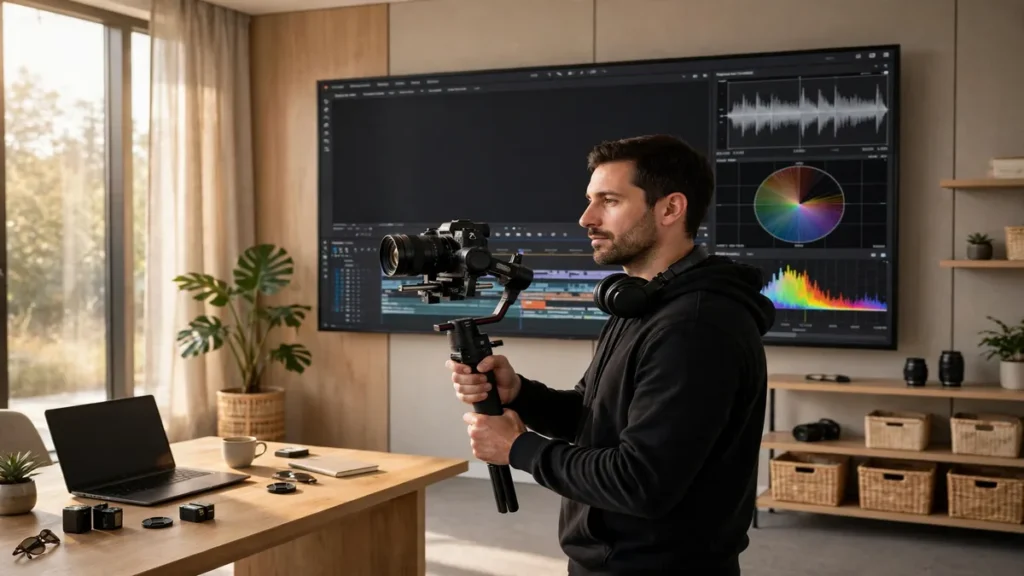
The best AI tools for videographers in 2026 do far more than speed up a timeline. They watch hours of raw footage and find the strongest moments, they balance colour across clips shot in different light, they clean up noisy audio recorded on location, and they turn a finished edit into captions, translations and platform-ready exports in minutes. For a working videographer, that combination changes what a single day of post-production can deliver, and it changes what a small crew can promise a client.
Videography has always been a craft of patience. A wedding film, a brand story or a short documentary can mean ten hours of footage for every finished minute, and most of that time used to go to repetitive work: sorting clips, syncing sound, cutting silences, matching shots and fixing exposure. AI tools now handle the repetitive part, which leaves the videographer free to spend time on the decisions that actually shape the film — the pacing, the story order, the grade and the sound design. The result is not a shortcut around skill. It is a better use of it.
This guide compares the best AI tools for videographers across the full workflow, from editing and colour grading to audio, subtitles and final delivery. Every tool here has been assessed on what it genuinely does well, where it falls short, what it costs, and which kind of videographer it suits best. Whether you shoot weddings, corporate films, YouTube content or commercials, you will find a setup that fits your work and your budget.
Key takeaways
- AI editing tools cut rough-cut time by hours by finding the best takes, removing silences and building a first assembly automatically.
- Colour grading AI matches shots from different cameras and lighting conditions, which keeps multi-camera projects consistent without manual shot-by-shot correction.
- Audio AI removes background noise, balances dialogue levels and repairs clipped or echoey location sound that would once have required a re-shoot.
- Subtitle and caption AI generates accurate, styled captions in many languages, which improves accessibility and keeps viewers watching on silent autoplay.
- The strongest setup pairs one AI editor with one specialist tool each for colour, audio and delivery, rather than relying on a single app to do everything.
How AI Tools Are Changing Videography
The change is easiest to see in the edit suite. A decade ago, an editor opened a project by watching everything. Every clip was scrubbed through, marked and logged by hand, and a rough cut for a ten-minute film could take a full working day before any creative cutting began. Modern AI editing tools watch the footage first. They transcribe the dialogue, detect faces and speakers, flag the sharpest takes, and assemble a rough cut that follows the script or the strongest moments. The editor then starts from a watchable assembly instead of a blank timeline, and the first creative pass begins hours earlier.
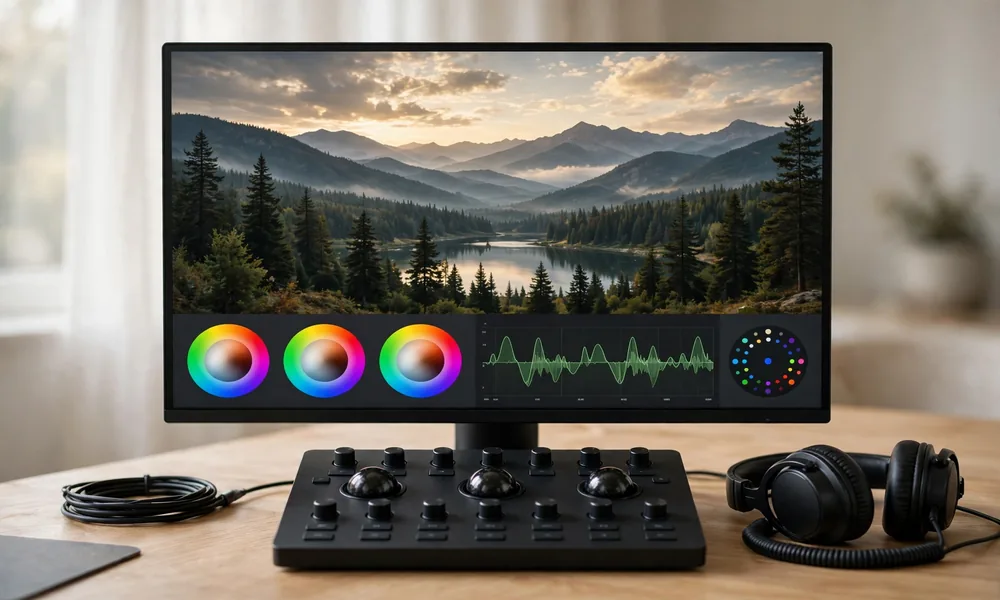
Colour work has changed in a similar way. Matching shots used to mean opening scopes, comparing waveforms and nudging wheels clip by clip until two cameras agreed. AI grading tools now analyse the whole project, learn the look of a reference frame, and apply a consistent grade across every shot. The videographer still chooses the look and still refines the hero shots by hand, but the mechanical work of matching exposure and white balance across dozens of clips is largely done before the session starts.
Audio is the third area where the difference is dramatic. Location sound is rarely clean: a wedding venue has air conditioning hum, a corporate interview sits next to a busy road, and a documentary subject moves away from the microphone mid-sentence. AI audio tools separate dialogue from noise, remove echo, and level voices so that a quiet speaker and a loud one sit comfortably in the same mix. These are repairs that once needed a studio and a specialist. Now they run inside the editing app, and they save projects that would otherwise have sounded unusable.
Delivery is the final stage to benefit. A finished film used to be exported once, then re-cut by hand for every platform: a vertical version for short-form video, a square version for feeds, a captioned version for silent viewing, and a clean master for the client. AI tools now reframe shots automatically, keeping the subject centred as the aspect ratio changes, and they generate captions and translations from the same transcript used in the edit. One master edit becomes five deliverables without five separate editing sessions.
Best AI Editing Tools
Editing is where most videographers meet AI first, and it is also where the differences between tools matter most. Some AI editors are built for speed and short-form content, while others are full professional suites with AI features layered on top. The right choice depends on the kind of work you deliver and how much control you want to keep over the cut.
Descript
Descript remains the clearest example of how AI changes the editing process. It transcribes your footage and lets you edit video by editing the text of the transcript: delete a sentence in the transcript and the matching video disappears from the timeline. Filler words such as ums and long pauses can be removed with a single command, and the Studio Sound feature cleans up noisy audio remarkably well. For interview-driven work, corporate films, talking-head YouTube videos and podcasts with video, Descript can cut editing time in half. Its weakness is that it is not a traditional timeline editor, so complex multi-camera projects and heavily layered visual effects still belong in a dedicated editing suite.
Adobe Premiere Pro
Adobe Premiere Pro has absorbed AI into the professional workflow rather than replacing it. Its text-based editing works like Descript inside a full timeline, speech enhancement cleans dialogue with one click, and generative extend can lengthen a shot or a piece of ambience when a cut falls short. The advantage for working videographers is continuity: existing projects, presets, colour workflows and team collaboration stay exactly where they are, and the AI features appear as tools inside that familiar environment. The trade-off is cost, since the subscription is higher than most standalone AI editors, and the AI features are only as strong as the hardware running them.
DaVinci Resolve
DaVinci Resolve pairs a professional editing and grading suite with AI features that are genuinely useful rather than decorative. Its neural engine handles magic mask tracking, smart reframing, voice isolation and scene-cut detection, and the free version includes many of these features, which makes it the best value in professional editing. The learning curve is steeper than Descript or CapCut, and the interface can feel dense for a videographer who only edits occasionally. For anyone who grades their own work, though, Resolve is hard to beat, because the AI editing and the industry-standard colour tools live in the same application. If you want a broader view of how AI tools support creative production beyond video, the best AI tools for content creation show how the same technology assists writers, designers and marketers too.
CapCut
CapCut is the fastest option for short-form and social video. Its auto-captions are accurate, its templates and effects are built for vertical video, and its AI features handle background removal, auto-cutting to music and one-click enhancement. For videographers who deliver reels, shorts and client social content alongside longer films, CapCut is an excellent second tool. It is not a replacement for a professional editor on a wedding film or a commercial, where precise control over colour, audio and multi-camera sync matters, but for speed and volume it is unmatched at its price.
Runway
Runway sits in a different category: it is a creative AI platform that generates and manipulates video, rather than a conventional editor. Its text-to-video and image-to-video tools can create establishing shots, b-roll and visual effects that would be expensive or impossible to shoot, and its inpainting and background tools clean up problem footage. For commercial and creative videographers, Runway opens shots that a small crew could never capture. The results need careful direction and review, and generated footage should be used thoughtfully alongside real footage, but as a creative extension of the camera it is a genuine step forward.
Best AI Colour Grading Tools
Colour is where a video either looks professional or it does not. Audiences may not know the vocabulary of grading, but they notice immediately when skin tones shift between shots or when a scene jumps from warm to cold for no reason. AI grading tools solve the consistency problem first and the creative problem second, which is exactly the right order for a working videographer.
DaVinci Resolve Colour AI
DaVinci Resolve remains the benchmark for colour. Its AI features include automatic colour matching between shots, face refinement that tracks and balances skin tones, and smart relighting that adjusts exposure in selected areas of the frame. The colour warper and magic mask let you isolate a subject or a region and grade it independently, with tracking handled automatically. For videographers who shoot with two or three cameras, the shot-match feature alone is worth learning Resolve, because it turns an afternoon of matching into a few minutes of review and refinement.
Colourlab Ai
Colourlab Ai takes a different approach: it analyses your footage and builds a look from reference stills or film stocks, then applies it consistently across the project. You can hand it a still from a film you admire, or a frame from your own best work, and it will map that look onto new footage while keeping skin tones natural. It works as a plug-in inside the main editing apps, so it fits into an existing workflow without forcing a new one. It is best suited to videographers who want a distinctive, repeatable look across client work and who are willing to build a small library of reference grades.
Adobe Lumetri and Auto Tone
Inside Premiere Pro, the Lumetri colour panel now includes AI-assisted auto tone, white balance and matching that give a solid starting point for every clip. The results are not as refined as a full Resolve grade, but for corporate work, event films and fast-turnaround projects they are often enough, and they keep everything inside one application. The sensible workflow is to let the AI set the balance and then refine the creative grade by hand on the key shots.
Best AI Audio Tools
Bad audio ruins good footage faster than any other problem. Viewers forgive a slightly soft shot, but they stop watching when dialogue is buried under noise or when levels jump between speakers. AI audio tools have become the safety net for location sound, and every videographer should have at least one in the kit.
Adobe Podcast Enhance
Adobe Podcast Enhance, built on the same speech technology as Premiere Pro, can take a thin, echoey recording made on a phone or a camera microphone and return clean, studio-like dialogue. It removes background noise, balances levels and reduces room echo in a way that still sounds natural. It is free for short clips and works through a browser, which makes it a useful rescue tool on location. The results can sound slightly processed on very poor recordings, so it is best used to lift usable audio rather than to save audio that was never recorded properly.
Descript Studio Sound
Descript Studio Sound applies the same idea inside the editing workflow. Dialogue is cleaned as part of the edit, and the effect can be adjusted per clip so that an interview recorded in a noisy hall and one recorded in a quiet office sit at the same level in the final mix. Because it runs inside the editor, there is no round trip to another application, which keeps the workflow simple for interview-heavy projects.
iZotope RX
iZotope RX is the professional standard for audio repair. Its AI-assisted modules remove hum, clicks, wind, rustle and reverb, and its dialogue tools can isolate a voice from a crowded room. It is the tool to reach for when a client project has a specific audio problem that a general enhancer cannot fix, such as a microphone bump during a vow exchange or wind noise across an outdoor interview. It requires more skill than one-click enhancers, but for a videographer who regularly shoots in uncontrolled environments, it pays for itself on the first rescue.
Auphonic
Auphonic handles the final stage of audio: levelling, loudness normalisation and noise reduction across a whole project. It is particularly useful for videographers who deliver series content, such as a YouTube channel or a training course, because it keeps every episode at the same loudness standard. The web-based workflow is simple: upload the audio or video, choose a preset, and download the balanced result. For course creators and educators, the best AI tools for course creation pair well with Auphonic, since consistent audio across lessons makes a course feel far more professional.
Best AI Subtitle and Caption Tools
Captions are no longer an optional extra. Most social video is watched without sound, search engines index captioned content, and accessibility rules increasingly require it. AI caption tools generate accurate subtitles in minutes, style them to match a brand, and translate them into other languages.
CapCut Auto Captions
CapCut produces the most polished social captions with the least effort. Its auto-caption engine is accurate across accents, and the animated caption styles are built for short-form video. Word-by-word highlighting keeps viewers engaged, and the captions can be customised to match a brand font and colour. For any videographer delivering social cuts, this is the fastest route from edit to publishable clip.
Descript Captions
Descript generates captions from the same transcript used for editing, which means the captions are accurate and easy to correct. Editing a word in the transcript fixes the caption and the video at the same time. This is a real advantage for long-form content, where caption errors are harder to spot and more damaging to credibility.
Rev and Otter.ai
Rev combines AI transcription with human review for projects where accuracy matters most, such as legal depositions, medical interviews and broadcast work. Otter.ai offers live transcription and strong speaker identification, which is useful for event videographers who need a searchable record of a conference or a panel discussion. Both are specialist tools rather than everyday caption generators, but they belong in the kit for high-stakes work.
Best AI Tools for Upscaling and Delivery
The final stage of a project is where AI saves the most visible time. Upscaling restores older or lower-resolution footage, reframing adapts one master edit to every platform, and automated delivery turns a single timeline into a full set of exports. These tools matter because clients now expect every format, and charging for each one separately is no longer realistic.
Topaz Video AI
Topaz Video AI is the leading tool for upscaling and enhancing footage. It can take 1080p footage and produce clean 4K, stabilise shaky handheld shots, remove noise from high-ISO footage and interpolate frames for smoother slow motion. For videographers working with mixed sources, such as archive clips, drone footage and phone video in the same project, it brings everything to a consistent quality. It is slow, because the processing is heavy, and it works best when run overnight or on a dedicated machine, but the results are genuinely impressive.
Opus Clip
Opus Clip watches a long video and cuts it into short, shareable clips, choosing the strongest moments, adding captions and scoring each clip for viral potential. For videographers who shoot podcasts, interviews, talks and events, it turns one long deliverable into a week of social content without extra editing sessions. The clips still need a human review before they go out, because the AI sometimes chooses a moment that works out of context, but as a first pass it is remarkably good.
Adobe Media Encoder and Frame.io
For professional delivery, Adobe Media Encoder with watch folders automates exports, while Frame.io adds AI-assisted review: clients can comment directly on the video, transcripts make feedback searchable, and version comparison shows exactly what changed. Together they remove the email chains and the version confusion that used to slow down approvals, and they keep the delivery process as professional as the shoot itself.
Comparison Table
| Tool | Best for | Key AI strength | Starting price |
|---|---|---|---|
| Descript | Interviews and talking-head video | Text-based editing and Studio Sound | Free plan; paid from around $16 per month |
| Adobe Premiere Pro | Professional all-round editing | Text editing, speech enhancement, generative extend | Subscription from around $23 per month |
| DaVinci Resolve | Editing and colour grading | Magic mask, smart reframe, shot matching | Free; Studio from around $295 once |
| CapCut | Short-form and social video | Auto-captions, auto-cut, background removal | Free; Pro from around $10 per month |
| Runway | Creative and generated footage | Text-to-video, inpainting, effects | Free plan; paid from around $15 per month |
| Colourlab Ai | Repeatable cinematic looks | Look matching from reference stills | Subscription from around $30 per month |
| iZotope RX | Professional audio repair | Noise, hum, reverb and click removal | From around $129 once |
| Topaz Video AI | Upscaling and enhancement | Upscale, denoise, stabilise, slow motion | From around $299 once |
| Opus Clip | Short clips from long video | Auto-clipping with captions and scoring | Free plan; paid from around $15 per month |
How to Choose the Right AI Tools
The best setup is the one that matches the work you actually deliver, not the one with the longest feature list. A wedding videographer needs reliable audio repair, fast colour matching and beautiful delivery. A corporate videographer needs text-based editing, accurate captions and clean client review. A YouTube creator needs speed, captions and short-form repurposing. Start from the deliverable and work backwards to the tools.
Budget matters, but it should be weighed against time saved. A tool that costs twenty dollars a month and saves four hours of editing on every project pays for itself on the first job. The free versions of DaVinci Resolve and CapCut are strong enough that a videographer can build a capable AI workflow without spending anything, then add paid tools where they clearly save time. The mistake is to subscribe to everything at once: pick one AI editor, learn it properly, and add specialist tools one at a time as real jobs demand them.
Compatibility is the other deciding factor. Tools that work as plug-ins inside your existing editor are easier to adopt than tools that require a separate workflow. Check that the AI tool exports the formats your clients need, that it runs on your hardware without long render waits, and that it keeps your footage private. Some cloud-based AI tools upload your video to their servers, which matters when you work under a non-disclosure agreement or with sensitive client material. For client work of any kind, the best video tools for small business offer a useful starting point for building a kit that balances capability with cost.
Finally, keep a human in charge of every creative decision. AI is excellent at the repetitive and the mechanical, and it is improving fast at the creative, but it does not know what a particular client values, which moment in a ceremony matters most, or how a brand wants to feel. The videographers who get the most from AI are the ones who let it do the heavy lifting and keep the judgement for themselves. Review every AI cut, every auto-grade and every auto-caption before it reaches a client, because your name is on the finished film.
Pre-Shoot Checklist for Using AI Tools
- Record clean audio on set, because even the best AI repair cannot replace a properly placed microphone and a sound check.
- Shoot with AI in mind by capturing a few extra seconds at the start and end of each take, which gives generative extend and stabilisation room to work.
- Keep camera settings consistent across cameras, since matching white balance and picture profiles makes AI colour matching far more accurate.
- Back up raw footage before any AI processing, so you can always return to the original if an AI enhancement goes wrong.
- Test your AI workflow on a short project first, so you learn its strengths and limits before using it on a paying client job.
- Review every AI output before delivery, including captions, grades and auto-cuts, because the final quality is your responsibility.
Frequently Asked Questions
What is the best AI tool for videographers in 2026?
There is no single best tool, because videographers do different work. For most professionals, DaVinci Resolve offers the strongest overall value, since its free version includes AI editing, masking and colour matching. Descript is the best choice for interview-driven work, while Premiere Pro suits editors who want AI inside a full professional suite. The best approach is to choose one AI editor as your base and add specialist tools for audio, colour and delivery.
Can AI tools replace a professional video editor?
No. AI tools handle repetitive tasks such as rough cuts, silence removal, colour matching and captioning, but they do not make creative decisions. They cannot judge which take carries the most emotion, how a story should be paced, or what a particular client will love. A videographer who uses AI well works faster and delivers more, but the creative judgement still belongs to a person.
Are AI video tools safe for client work?
Mostly yes, with one important check. Some cloud-based AI tools upload your footage to their servers for processing, which can be a problem under a non-disclosure agreement or with sensitive material. Before using a cloud tool on client footage, read its privacy policy and check whether it offers local processing or a business agreement. Desktop tools such as DaVinci Resolve, Topaz Video AI and iZotope RX process footage on your own machine.
How much do AI tools for videographers cost?
A capable AI workflow can start free with DaVinci Resolve and CapCut. A typical professional setup costs between forty and eighty dollars a month, covering an AI editor, a caption tool and a specialist audio or colour tool. One-off purchases such as Topaz Video AI and iZotope RX add a few hundred dollars but last for years. The cost is small compared with the editing hours saved on a single project.
Will AI-generated footage look fake to clients?
It can, if it is used carelessly. Generated b-roll, establishing shots and effects look convincing when they are brief, well directed and blended with real footage. They look wrong when they carry the whole scene or when faces and hands are visible. Use generated footage to solve a specific problem, such as a missing establishing shot, and review every frame before delivery.
Do AI tools work with footage from any camera?
Yes, in most cases. AI editing, grading, audio and upscaling tools accept standard formats from mirrorless cameras, cinema cameras, drones and phones. The results are best when the source footage is clean and well exposed, because AI enhancement amplifies whatever is in the frame, including noise and compression artefacts. Shooting in a flat or log picture profile gives AI colour tools the most room to work.
The Bottom Line
The best AI tools for videographers in 2026 are the ones that give you back your time. Descript and Premiere Pro speed up the edit, DaVinci Resolve and Colourlab Ai keep your colour consistent, Adobe Podcast Enhance and iZotope RX rescue location audio, CapCut and Descript handle captions, and Topaz Video AI and Opus Clip turn one master edit into every format your clients need. None of them replaces your eye, your taste or your judgement, and none of them should be trusted without review. Used well, though, they let a small crew deliver work that once needed a whole post-production team, and they leave you free to spend your hours on the part of videography that actually matters: telling the story well.

Keep what speaks to you.
Leave room for your own perspective.


